How to Use the Roblox Inventory
The Roblox inventory is a collection of all items linked to your account, including avatar accessories, clothing, animations, badges, game passes, and developer products. Understanding how to access and manage your inventory helps you customize your appearance, view owned items, and use game-related content effectively.
What the Inventory Contains
Your Roblox inventory stores every item you have acquired through purchases, rewards, or gameplay. Inventory categories include:
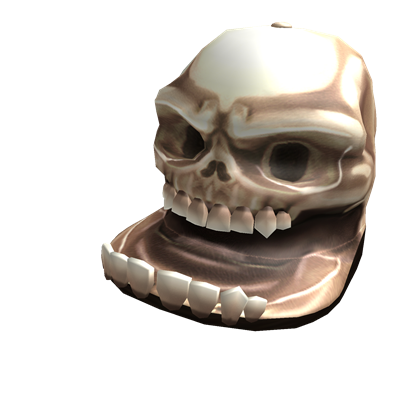
- Accessories — hats, hair, faces, and other avatar items.
- Clothing — shirts, pants, jackets, and outfits.
- Animations — walk, run, jump, and idle animations.
- Body parts — heads, arms, legs, and torso items.
- Badges — achievements earned in different experiences.
- Game Passes — permanent upgrades for specific games.
- Developer Products — items purchased inside games.
Some items can be equipped, while others simply remain as records of achievements or purchases.
How to Access Your Inventory
You can open your inventory from the main Roblox website or mobile app.
- Select your Profile.
- Click Inventory.
- Choose a category such as Accessories, Clothing, Badges, or Game Passes.
The inventory automatically organizes items by type to make navigation easier.
Managing Avatar Items
Avatar-related items can be equipped or unequipped through the Avatar menu. This includes clothing, accessories, animations, and body parts.
- Open the Avatar tab.
- Select the category you want to change.
- Click an item to equip or remove it.
Changes apply instantly and affect your appearance in all experiences.
Viewing Game Passes and Developer Products
Game Passes and developer products are items tied to specific experiences:
- Game Passes — permanent upgrades or abilities inside a game.
- Developer Products — consumable items or boosts purchased in-game.
These items appear in your inventory under their respective categories. They cannot be equipped but are automatically applied in the experience that issued them.
Badges in Your Inventory
Badges represent achievements earned in Roblox experiences. They appear in your inventory and on your public profile. Badges cannot be equipped or used but serve as proof of completed challenges or milestones.
Sorting and Filtering Items
The inventory includes tools to help you find specific items:
- Filters by category
- Sort options such as newest or oldest
- Search bar for item names
These tools make it easier to manage large inventories with many accessories or clothing items.
Who Can See Your Inventory
Inventory visibility depends on your privacy settings.
- Everyone — all users can view your items.
- Friends — only friends can see your inventory.
- No One — your items remain completely private.
You can adjust this in the Privacy section of your account settings.
Common Inventory Issues
Players may sometimes encounter problems with inventory items. Common issues include:
- Items not loading due to connection issues.
- Recently purchased items taking time to appear.
- Accessories overlapping or not fitting correctly.
- Limited items no longer being resellable if changed by developers.
Most issues resolve by refreshing the page or reloading the avatar editor.
Summary
The Roblox inventory lets you store, view, and manage all items linked to your account, including avatar accessories, clothing, badges, game passes, and rewards earned in experiences. By understanding how to access and organize your inventory, you can customize your appearance, track achievements, and use game-specific items effectively.
